The table had 40,000 tiny files. The small file problem in Databricks, explained
Why Delta tables slowly fill up with tiny files, why that makes every query slower, and how OPTIMIZE and VACUUM quietly fix it.
A team I know had a nightly job that loaded a few thousand rows into a Delta table. Small job. It ran in minutes. The table grew slowly, a gigabyte a week at most.
By the third month, analysts were complaining. Dashboards that used to load in two seconds now took thirty. The engineer checked the obvious things. The cluster was the same size. The SQL had not changed. The data volume was only slightly bigger.
Then someone looked at the table's storage. The table had about 40 GB of data. It also had more than 40,000 files.
The table was not big. It was fragmented. And that turned out to be the same kind of slow as big.
What a file costs
Every time Spark reads a table, it does work per file, not just per byte. It lists the files in storage. It opens each one. It reads the footer, finds the data, closes it, and moves to the next.
For one large file, that overhead happens once. For ten thousand small files, it happens ten thousand times. The actual data being read might be tiny, but the bookkeeping is not.
This is the small file problem. A Delta table is a folder of Parquet files plus a transaction log. Nothing stops that folder from filling up with thousands of files that are each a few megabytes, or a few kilobytes. Spark will still read them. It will just spend most of its time opening and closing instead of reading.
There is a second cost that is easier to miss. The Delta transaction log tracks every active file. More files means a bigger log, which means planning a query takes longer before any data is touched. If you have read the time travel article, you know the log is the table's memory. A table with 40,000 files has a very long memory to sort through.
Where small files come from
Small files are not a bug. They are the natural result of how data arrives.
Streaming writes. A streaming job with a trigger every minute writes a small batch every minute. Each batch becomes one or more new files. Run that for a month and you have tens of thousands of files, each holding a minute of data.
Frequent MERGE and UPDATE. Delta Lake never modifies a file in place. A MERGE rewrites the files that contain matching rows. Run a MERGE every ten minutes and the table keeps producing new, often small, files while the old versions pile up underneath.
Over-partitioning. If you write a DataFrame with 200 partitions and each partition writes to 50 partition folders, you can create 10,000 files in a single write. We covered the layout side of this in Z-ORDER or liquid clustering. File count is the other half of the same story.
Small appends, many jobs. Ten different jobs each appending a little data to the same table will each create their own files. Nobody planned 40,000 files. Everybody contributed a few.
Seeing the problem
You do not need any special tooling to check. Delta tells you directly.
DESCRIBE DETAIL workspace.default.orders;Two columns matter most: numFiles and sizeInBytes. Divide one by the other and you get the average file size.
A healthy Delta table usually has files in the range of 100 MB to 1 GB. If your average file is 2 MB, you have a small file problem, even if the table feels fine today. It will not feel fine at ten times the size.
You can run this in Databricks Free Edition on any of the practice tables from the first data engineering project. Build the orders table, append to it a few times in small batches, and watch numFiles climb. It is one of those things that clicks the moment you see it on your own data.
OPTIMIZE: many small files in, fewer big files out
The fix is a maintenance command called OPTIMIZE.
OPTIMIZE workspace.default.orders;OPTIMIZE reads a group of small files and rewrites them as fewer, larger files. The data does not change. The rows are identical. Only the packaging changes.
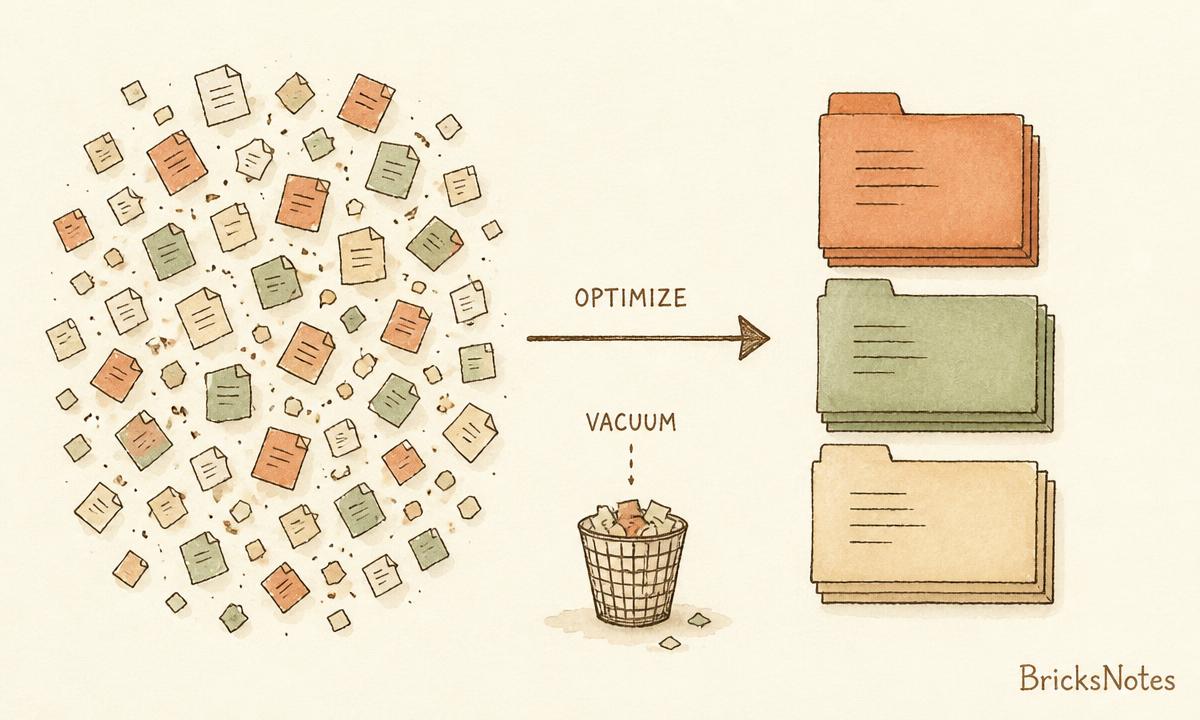
OPTIMIZE repacks small files into larger ones. VACUUM removes the old files that are no longer referenced.
A few things worth knowing.
OPTIMIZE is not automatic by default. It is a command you run, usually on a schedule. Nightly or weekly is common for batch tables. For busy streaming tables, some teams run it every few hours.
OPTIMIZE is incremental in practice. It skips files that are already a reasonable size, so running it often is cheap. Running it never is expensive.
And OPTIMIZE is also where data layout happens. OPTIMIZE ... ZORDER BY sorts data inside the new files so queries can skip more of them, and on tables using liquid clustering, OPTIMIZE is what maintains the clustering. Same command, two jobs.
OPTIMIZE workspace.default.orders ZORDER BY (customer_id);VACUUM: throwing away the old boxes
OPTIMIZE creates new files, but it does not delete the old ones right away. It cannot, because of time travel. The old files are what let you query the table as of yesterday.
That is what VACUUM is for.
VACUUM workspace.default.orders RETAIN 168 HOURS;VACUUM deletes files that are no longer referenced by the current version of the table and are older than the retention period. 168 hours is seven days, the default.
The trade-off is direct. Whatever retention you choose is how far back time travel can go. VACUUM with seven days of retention means versions older than seven days may no longer be queryable. So the retention period is not a storage decision. It is a promise about how far back your table can remember. Pick it with your audit and recovery needs in mind, the same way you would think about any of the checks in the data quality article.
One safety note. Never run VACUUM with RETAIN 0 HOURS unless you are very sure nothing else is reading the table. A reader that started before the VACUUM can lose files mid-query.
A simple maintenance rhythm
You do not need a framework for this. A small scheduled job is enough.
spark.sql("OPTIMIZE workspace.default.orders")
spark.sql("VACUUM workspace.default.orders RETAIN 168 HOURS")
Put it in a job that runs nightly after your loads finish. If you are not sure how to schedule that, the Jobs and Pipelines lesson walks through exactly this kind of recurring task, and the observability article shows how to know when a maintenance job quietly stops running.
For streaming tables, there is a built-in option worth knowing: Auto Compaction. With spark.databricks.delta.autoCompact.enabled set to true, Databricks compacts small files automatically after writes. It does not replace a periodic OPTIMIZE, but it keeps the file count from exploding between runs. We use it on the streaming side of the patterns in the incremental processing lesson.
The rule of thumb
After fixing that 40,000-file table, the team adopted a habit that I think is worth stealing.
Once a week, someone runs DESCRIBE DETAIL on the ten most important tables and writes down two numbers: file count and average file size. If the average drops below about 100 MB, that table gets an OPTIMIZE that week. If storage keeps growing after OPTIMIZE, it is time to check VACUUM retention.
That is the whole system. Two numbers, once a week.
The small file problem is not exotic. It is what happens to every Delta table that gets written to often and maintained never. The good news is that it is one of the few performance problems in data engineering with a genuinely simple fix: pack the small boxes into big ones, and throw away the boxes you no longer need.
If you want to build this intuition from the ground up, the Delta Lake lesson in the BricksNotes book covers how files, logs, and versions fit together, and the partitioning and performance lesson shows how layout choices change what queries cost. The small file problem makes a lot more sense once you have seen the mechanics with your own hands.