What did this table look like last Tuesday? Delta Lake time travel, explained
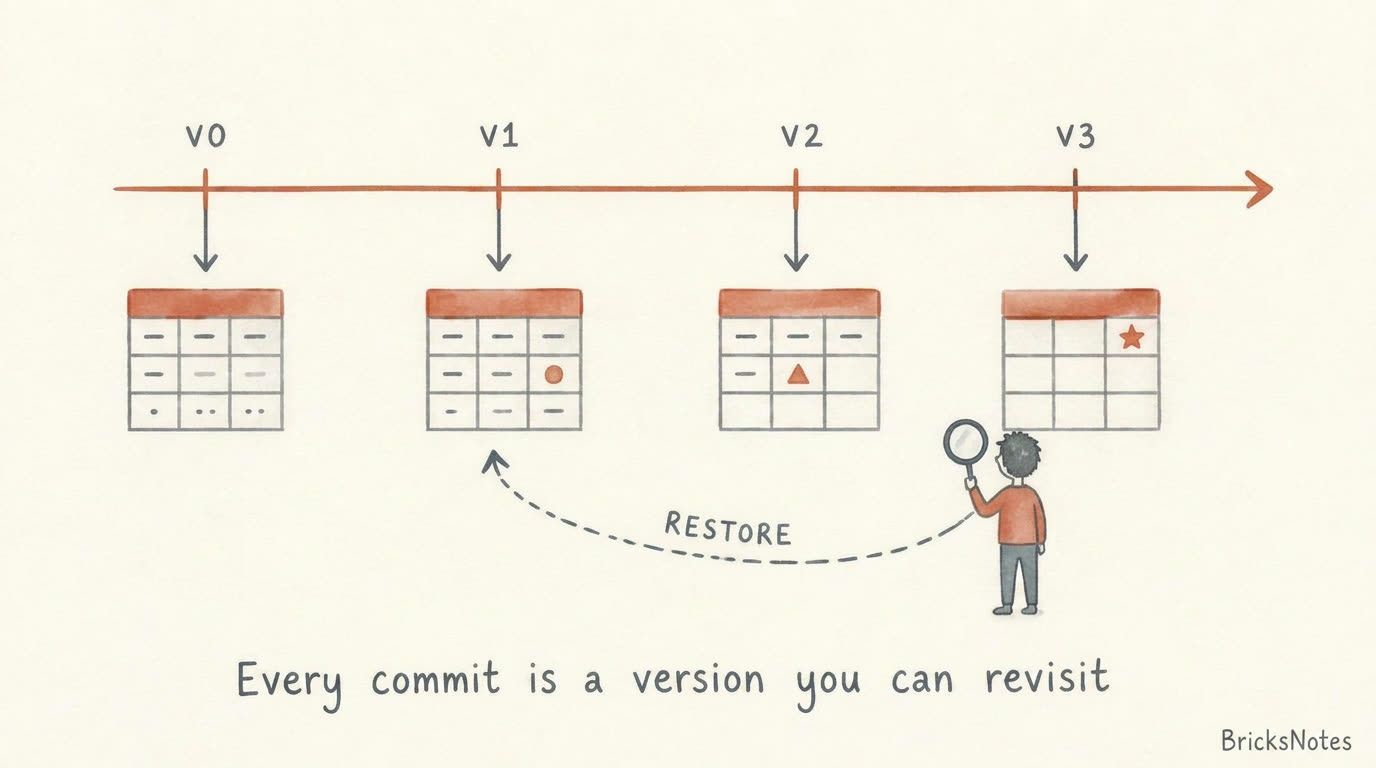
Every commit to a Delta table is a version you can revisit. Here is how to query the past, undo mistakes, and answer the questions that used to be impossible.
What did this table look like last Tuesday? Delta Lake time travel, explained
On Tuesday morning, a small change went into the daily orders job. Nobody noticed anything. The job ran green, the dashboard refreshed, and the team moved on.
On Thursday, an analyst pinged the data channel. The revenue number for last Friday looked different from the screenshot she had taken on Monday. Same table. Same date filter. Different number.
The question she asked next is the one every data engineer dreads: what did this table look like last Tuesday?
If your table is a plain folder of Parquet files, the honest answer is painful. The files were overwritten. The past is gone. You can guess, you can reconstruct from sources if you are lucky, or you can admit you do not know.
If your table is a Delta table, the answer is one line of SQL away.
The idea: your table has a memory
A Delta table is not just the data files. Next to the data lives a transaction log. Every time something writes to the table, the log records what changed: which files were added, which were removed, who did it, and when.
Each of those writes gets a version number. Version 0 is the moment the table was created. Every insert, update, delete, merge, or optimize after that increments the version.
The important part is this: older data files are not deleted right away. The log simply points at newer ones. Which means the old state of the table still physically exists, and Delta can rebuild it for you on demand.
That is time travel. Not a feature you turn on. A consequence of how Delta works.
Reading the past
Say the table is called orders_silver and today it is at version 42. To see what it looked like at version 38:
SELECT *
FROM orders_silver VERSION AS OF 38
WHERE order_date = '2026-08-28'
That query does not restore anything. It does not touch the current table. It just reads the older set of files for this one query.
If you remember the moment better than the version number, use a timestamp instead:
SELECT COUNT(*) AS row_count
FROM orders_silver TIMESTAMP AS OF '2026-08-25 10:15:00'
The same thing works in PySpark:
df_last_tuesday = (
    spark.read
    .option("versionAsOf", 38)
    .table("orders_silver")
)
This is the answer to the analyst's question. Run her query against version 38, next to the same query against the current version, and the difference shows you exactly what changed on Tuesday morning.
First, look at the history
Usually you do not know which version you need. You know something changed around Tuesday. The table itself can tell you:
DESCRIBE HISTORY orders_silverThis returns one row per version: the version number, the timestamp, the operation (WRITE, MERGE, DELETE, OPTIMIZE), who ran it, and useful metrics like how many rows were added or removed. Scan this list, find the write that looks suspicious, and time travel to the version right before it.
A good habit: when a pipeline does something important, look at the history afterwards. It teaches you what your own jobs actually do to the table, which is often different from what you assumed.
Undoing a bad write with RESTORE
Reading the past is useful. Sometimes you need to go further and put the table back the way it was.
Tuesday's change, it turns out, double counted orders because of a bad join. The fix is not a careful DELETE. It is:
RESTORE TABLE orders_silver TO VERSION AS OF 38One statement. The table now reads exactly as it did at version 38. And here is the part people love: RESTORE is itself a new version. The bad write is still in the history. You did not erase the past, you added a new present that matches an older state. If you restored by mistake, you can restore forward again.
Compare this to the traditional recovery path: stop the pipeline, find a backup, reload the table, replay everything that happened since. With RESTORE, recovery is measured in seconds, and it is auditable.
This pairs naturally with the idea of safe reruns. A pipeline that can be rerun safely, on a table that can be restored instantly, is a pipeline you can operate without fear.
Where this earns its place
Time travel sounds like a neat trick until you list the situations where it quietly saves you.
Debugging bad data. When someone reports a wrong number, your first move is to compare the table now against the table before the last suspicious write. This is the exact workflow from our story, and it turns a day of archaeology into ten minutes of SQL. It fits right into the habits from the pipeline observability article: when an alert fires, history is your first diagnostic tool.
Reproducing a report. Finance asks why a month-end report shows a different total when it is rerun in the following week. With time travel, you rerun the report against the table as of the original run date. Same input, same query, same answer. The report becomes reproducible.
Recovering from mistakes without a backup restore. Accidental DELETE without a WHERE clause. A MERGE with a wrong join key. A backfill that landed in the wrong place. RESTORE handles all of these. If you have read the backfill article, you will recognize the pattern: the safest operations are the ones you can undo.
Auditing what happened. DESCRIBE HISTORY tells you who changed the table, when, and how. In Unity Catalog, this combines with lineage and audit logs to give you a real answer when governance asks what happened to a dataset.
The limits you must know
Time travel is not magic, and it is not a backup. Two limits matter.
First, retention. Old versions exist because old data files still exist. Delta cleans those files up with VACUUM, and by default VACUUM removes files older than seven days. After cleanup, you cannot travel further back than the oldest retained file. If your audit requirements are longer, you need a deliberate retention plan, not a default.
Second, the log only goes back so far in detail. DESCRIBE HISTORY keeps a limited window of operation metrics. For long term audit trails, export history somewhere durable rather than relying on the table itself.
The healthy mental model: time travel is for days and weeks of operational recovery and debugging. Backups and exports are for months and years of compliance.
A small habit that changes how you work
There is a subtle shift that happens once you trust time travel. You stop being afraid of your own tables.
You try the MERGE, because a bad one can be restored. You let analysts query production tables during an incident, because reading the past does not disturb the present. You answer "what changed?" with data instead of apologies.
If you want to build this muscle hands on, the Delta Lake lesson walks through the transaction log, versions, and ACID behavior step by step in Databricks Free Edition, and the data quality lesson shows how constraints stop some of these mistakes before they ever need a RESTORE.
The next time someone asks what the table looked like last Tuesday, you will smile, open a notebook, and answer them before the meeting ends.
Continue learning: Start with the Delta Lake lesson to understand the transaction log deeply, then read how safe reruns and observability build on the same foundation. When you are ready to practice for certification, the Data Engineer Associate practice exam covers these exact behaviors.